
Demo Mode
Demo Mode lets you try S7 PLC Buddy without a PLC, a network, or TIA Portal. It connects a fully simulated PLC and a simulated TIA Portal project in seconds, so you can see what the app does before you connect it to real equipment.
Demo Mode is free and unlimited. It works before you start a trial, and it does not use up your trial days.
Start Demo Mode
Section titled “Start Demo Mode”Either:
-
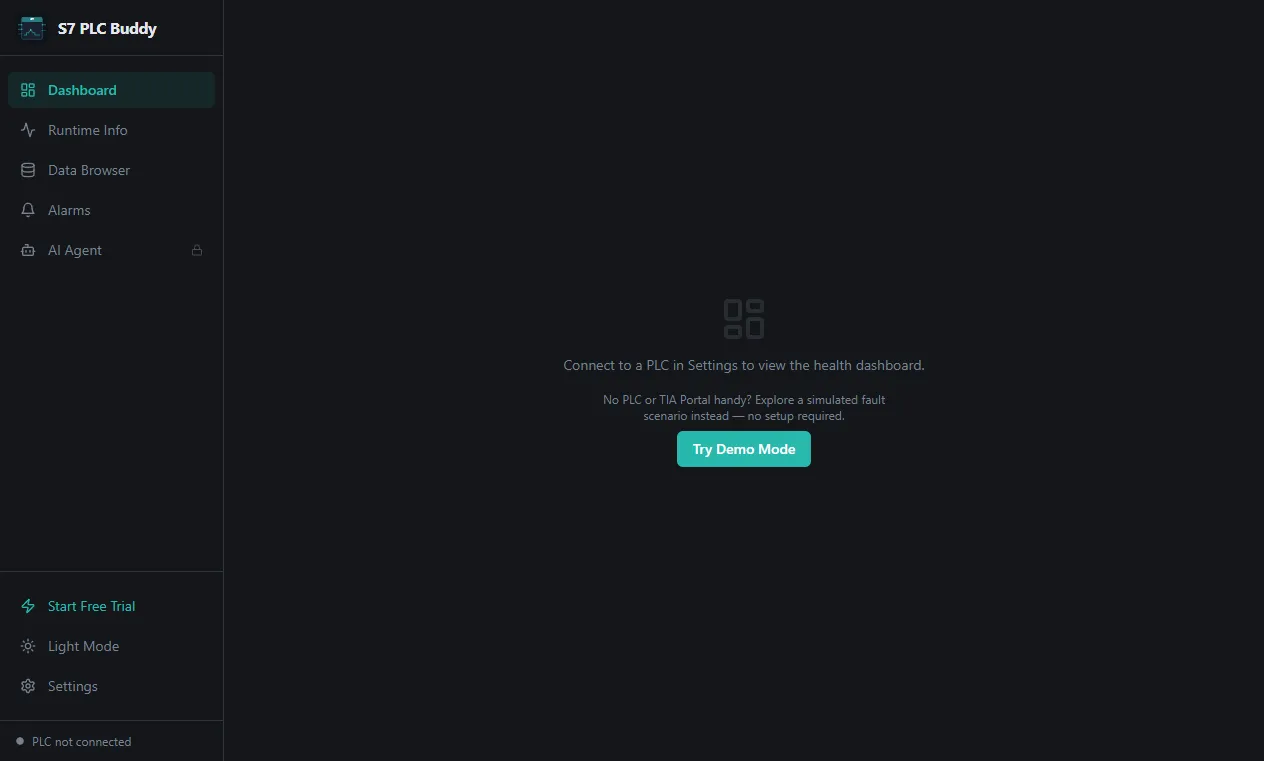
On the Dashboard (or the Data Browser, Alarms, or Runtime Info page) of a fresh install, click Try Demo Mode; or
-
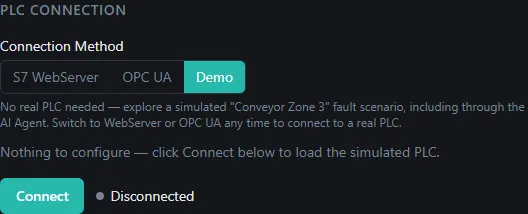
Go to Settings → Connections, choose Demo as the connection method, and click Connect.
While Demo Mode is active, an amber “Demo Data — not a real PLC” note stays at the top of the left sidebar on every page, so simulated data is never mistaken for real data.
What it simulates
Section titled “What it simulates”A conveyor (“Conveyor Zone 3”) has stopped because of an overcurrent fault on its drive. Everything in the app shows a consistent picture of that fault:
| Area | What you can do |
|---|---|
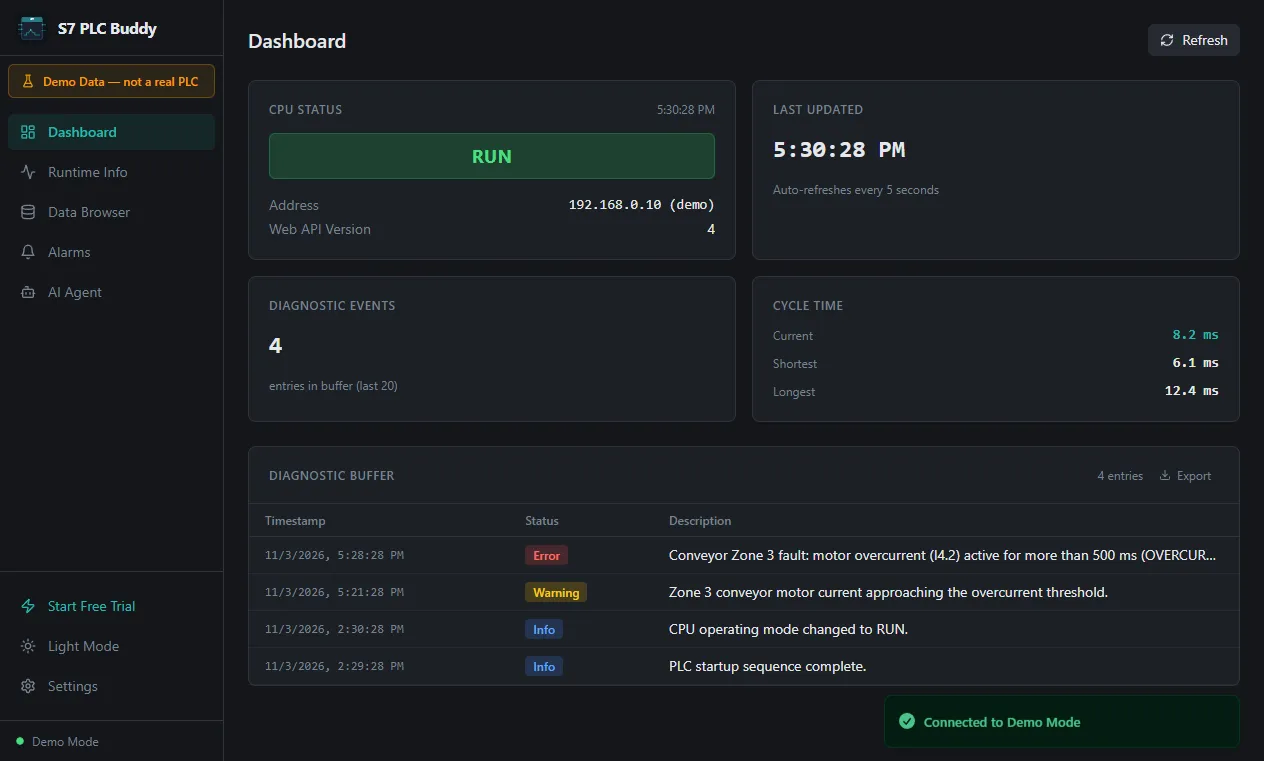
| Dashboard | See the CPU status, the diagnostic buffer with the fault events, and the cycle time |
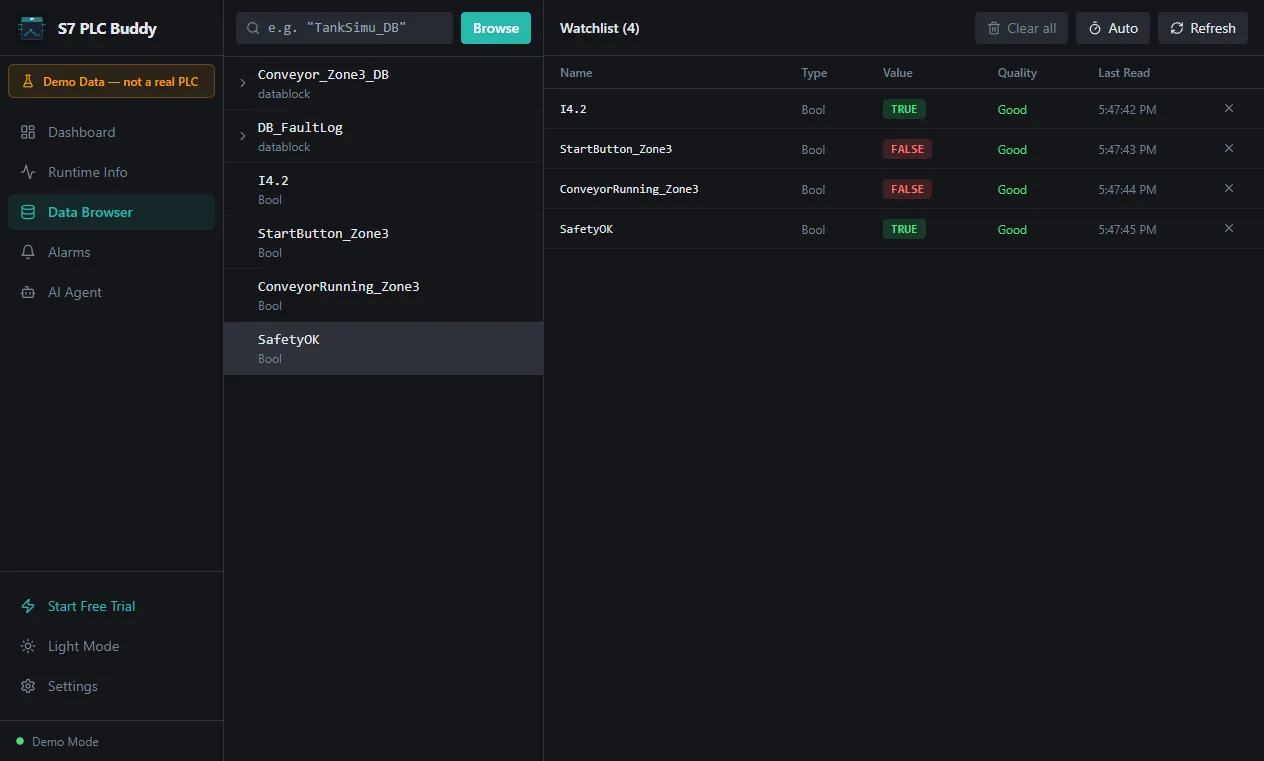
| Data Browser | Browse the simulated tag tree (the conveyor’s data block, the fault log), read live values, and build a watchlist |
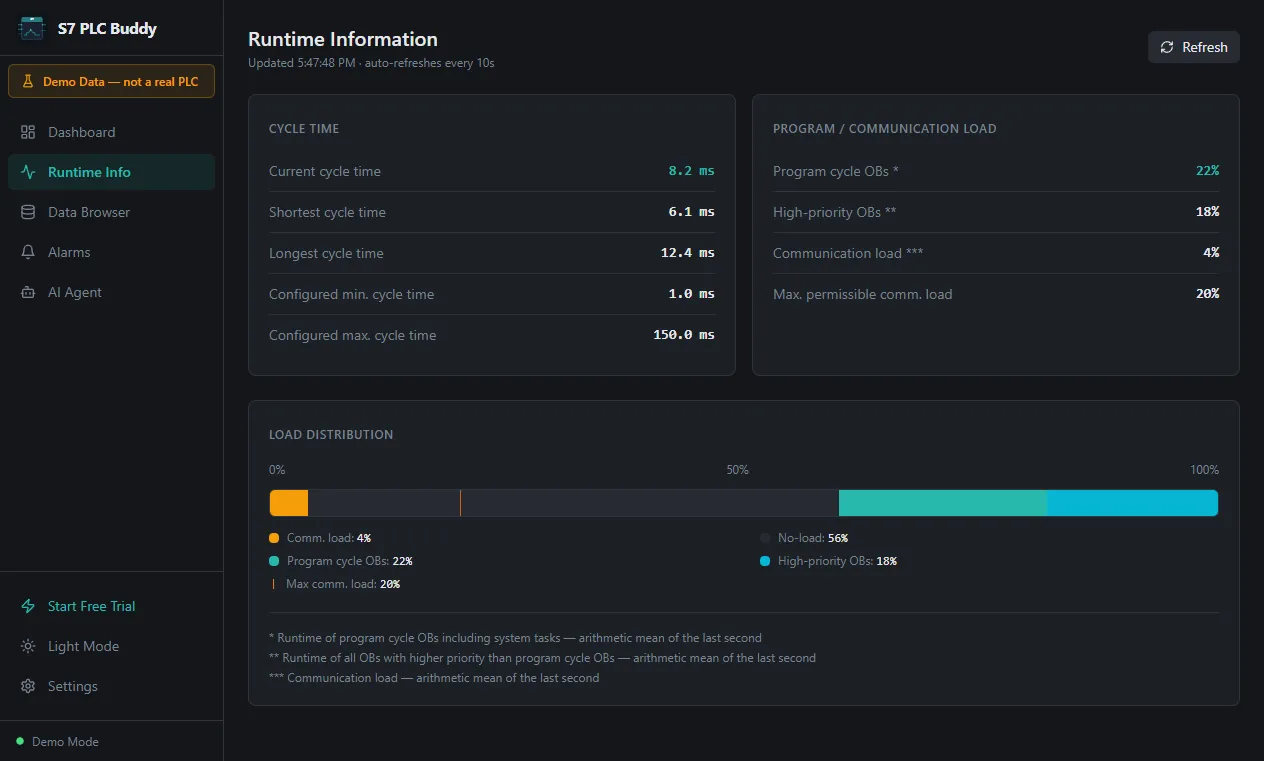
| Runtime Info | See the cycle time statistics and how the CPU load is distributed |
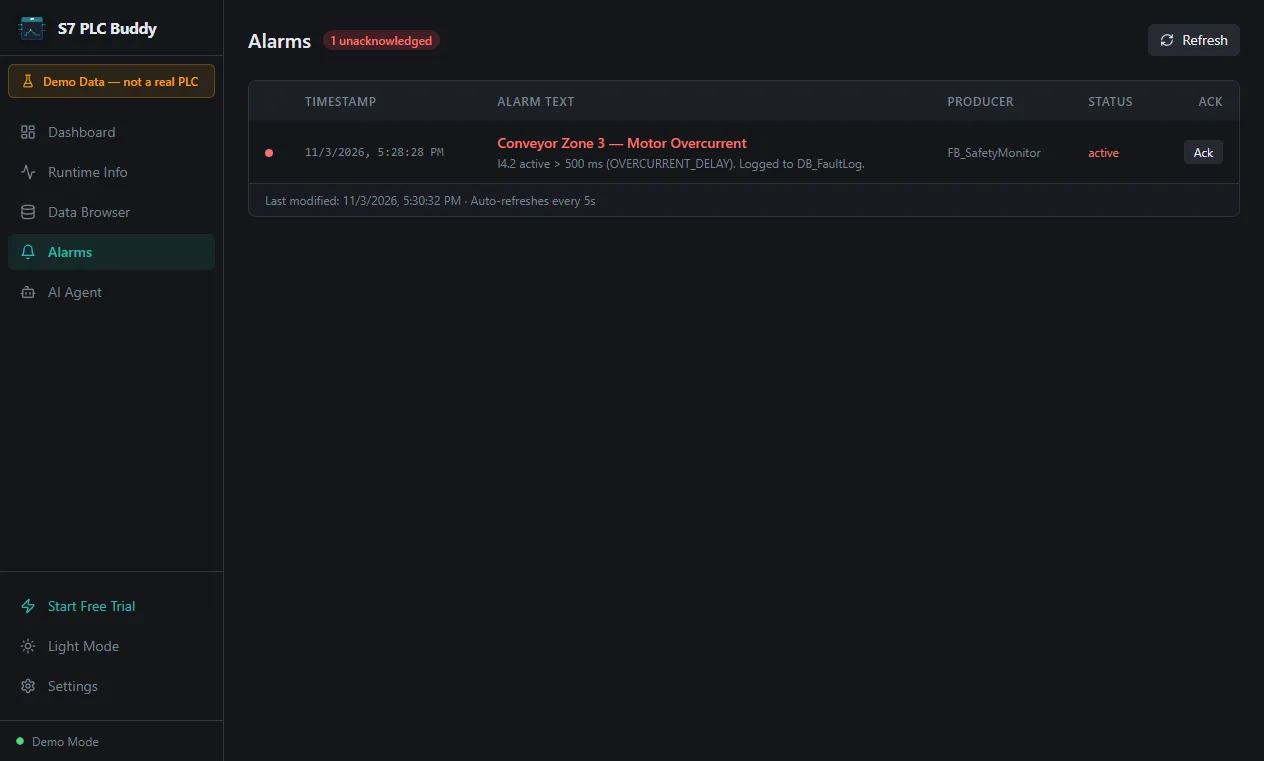
| Alarms | See the active alarm and acknowledge it |
| TIA Portal project | A small simulated project with blocks such as FB_ConveyorDrive, OB_Main, FB_SafetyMonitor, and a fault log data block. The agent can list the blocks, read their source, see who calls whom, and make a change |
The Dashboard shows the CPU in RUN and the overcurrent fault in the diagnostic buffer:
The Data Browser lists the simulated data blocks and tags. Click a tag to add it to the watchlist and read its live value:
Runtime Info shows the cycle time and the load distribution:
The Alarms page shows the active alarm, which you can acknowledge:
Use it with the AI Agent
Section titled “Use it with the AI Agent”The AI Agent needs an AI provider, as always: add your own key or a local model in Settings → AI Agent (see Setup & Models). The AI Agent page is available in Demo Mode even if you have not started a trial. Then try:
Why did Conveyor Zone 3 stop?The agent reads the simulated diagnostic buffer, alarms, and the real source of the simulated blocks, and explains the fault with the blocks and constants involved. Then ask it to change something:
Add a configurable overcurrent delay to FB_ConveyorDrive.It asks clarifying questions, writes SCL, imports it into the simulated project, and reports a clean compile, the same workflow as on a real project.
Limits
Section titled “Limits”- The simulated project is built around this one scenario. A question about something outside it gets a clear “not available in this demo project” answer instead of an invented one.
- Not everything a real PLC offers is simulated: some details (for example, CPU memory usage and module states) are reported as not available, the same way the real WebServer connection reports them.
Leave Demo Mode
Section titled “Leave Demo Mode”Go to Settings → Connections and disconnect, or connect to a real PLC. The simulated data disappears and the app returns to its normal connection state.